AmberPaint - Motion Brush
- 4.0
- Rating
- 50.00K
- Installs
- Free
- Price

 Analysis by App-foxy
I approached AmberPaint - Motion Brush as a small creative experiment rather than a replacement for a full drawing studio. Its central idea is simple: use animated, wiggly brush behavior to make ordinary marks feel alive. That gives the app a very different personality from a standard sketchpad, where the goal is usually clean lines, careful layers, and precise control. Here, the charm comes from movement and imperfection.
After spending time with it, I think its appeal is easiest to understand when you imagine making a quick visual message, a playful doodle, or a moving accent for a social post. It is less convincing as the only tool for serious illustration work. The app is listed in the Art & Design category, comes from ALRESPOL, and is free to start, with optional purchases ranging from $2.99 to $19.99 per item. That combination makes it easy to try, although the purchase structure is worth keeping in mind if you expect a completely unrestricted creative toolbox.
How the animated brush changes ordinary drawing
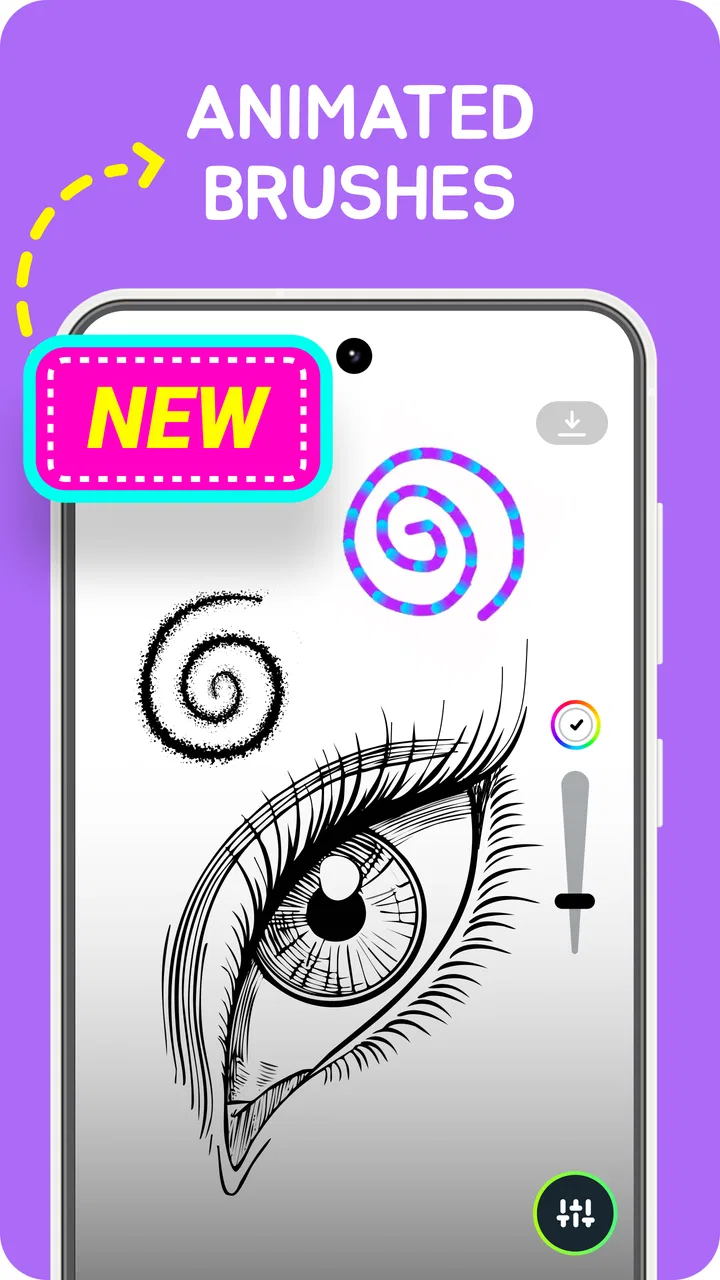
The most important thing to understand is that this is not simply a conventional paint app with a decorative name. The wiggly brush concept changes the result of every stroke. Instead of treating your finger or stylus as a device for producing perfectly stable lines, the app turns the brush into part of the visual effect. A slightly uneven mark can look intentional, energetic, and more expressive than a straight digital stroke.
You May Also Like

 Blood Strike: 2.5 Anniversary
Blood Strike’s Loadouts Turn Every Drop Into a Tactical Gamble
A close look at Blood Strike’s custom loadouts: how fast access to signature weapons reshapes its battle royale rhythm, rewards preparation, and narrows the gap between fights.

 Pandora - Music & Podcasts
Pandora’s Music Is Easy to Start, but Harder to Recover
Pandora’s strength is its low-effort path from a seed to a station. Its weak spot is how much confidence it asks you to place in connection, setup, and quiet recovery.

 8 Ball Pool
 Is Built on Rivalries, Rematches, and Routine
A close look at the rivalries, rematches, shared routines, and unanswered safety questions that turn a quick pool match into a persistent mobile community.

 Samsung Music
’s Quiet Strength Is Playing What You Already Own
Its reach comes less from spectacle than from dependable access to a personal library. That simplicity is both the app’s strongest retention engine and its ceiling.

 AccuWeather: Weather Radar
AccuWeather Review: A Quick, Clear Forecast for Everyday Decisions
For everyday plans, the best forecast is the one you can understand quickly. AccuWeather makes rain timing, radar, and local conditions easy to act on, with a few trade-offs.

 Hill Climb Racing
Why Hill Climb Racing Still Turns Crashes Into One More Run
A tiny car, a bumpy hill and one more upgrade: Hill Climb Racing keeps resurfacing because its simple chaos makes every near-miss feel personal.
More From Our News Desk



I found that this makes the first few minutes feel inviting. You can draw without worrying too much about technical accuracy, because the movement in the brush gives even a rough sketch a recognizable style. That is useful for people who enjoy doodling but become frustrated when their digital lines look too rigid. It also suits children and casual creators, which fits the Everyone content rating.
The trade-off is control. If your aim is architectural precision, detailed lettering, realistic shading, or a polished portrait, a dedicated illustration app will usually be the better choice. Those apps tend to offer more predictable brushes, stronger layer management, selection tools, and detailed correction options. AmberPaint is more interesting when the brush itself is part of the finished image rather than an invisible instrument.
The strongest creative decision is to let the wobble remain visible. Trying to force every mark into a perfect shape misses the point of the experience. I had better results when I used short strokes, loose outlines, and repeated marks to build texture instead of attempting one flawless line. The app rewards a relaxed hand more than a meticulous one.
A practical first session
For a first test, I would not begin with a complicated illustration. I would draw a few simple shapes, write a short word, and then try the same idea with different stroke speeds. Slow movements can produce a very different visual rhythm from quick gestures, and that difference is more useful to explore than immediately filling a whole canvas.
A good exercise is to create a small icon using only three elements: an outline, a contrasting interior mark, and a repeated accent. This shows whether the motion effect helps your style or becomes distracting. It also prevents the common mistake of covering the screen with too many animated-looking lines before you understand how they interact.
Another useful approach is to treat the brush like a texture tool. Rather than drawing a complete object, use it to suggest grass, hair, sparks, water, or a hand-drawn border. These applications make the animated quality feel purposeful. In my experience, the result is more attractive when the movement supports a visual idea instead of being applied equally to every part of the picture.
Where connectivity enters the experience
The core appeal is the act of drawing, but a modern mobile workflow rarely ends when the mark is made. You may want to show a result to someone, move it into another creative project, or share it while traveling. That is where connectivity begins to shape the experience, even though the drawing itself should be judged first on how comfortable it feels in your hand.
Network conditions matter most around the surrounding mobile workflow: discovering the app, handling optional purchases, and sharing or moving creative results through other services. A stable connection makes those moments feel routine. A weak connection can turn a quick creative session into a stop-and-start process, especially if you are trying to obtain something that depends on the store or send your finished work immediately.
I would therefore separate two expectations. If you want a tool for spontaneous mark-making, the important question is whether the drawing surface responds well in the moment. If you expect a complete connected publishing pipeline, you should examine each step of your own workflow rather than assuming that a playful brush app will handle everything from creation to distribution.
This distinction is particularly important for people who work in places with unreliable service. A train journey, a crowded event, or a room with poor reception can make sharing and account-related actions less convenient than the drawing itself. I would plan to create first and distribute later when the connection is dependable, instead of making the app responsible for an urgent delivery.
Using it in everyday mobile situations
The best everyday scenario I can imagine is a quick visual note. Suppose you are waiting for a friend and want to send a small hand-drawn message rather than a plain sentence. A wiggly brush can give that note more character without requiring you to be an experienced artist. The same idea works for a birthday card, a playful reaction, a simple classroom illustration, or a rough concept you want to remember before it disappears.
It can also be useful for parents and children who want a low-pressure creative activity. The animated quality makes experimentation feel like the objective, not a mistake to erase. I would still supervise younger users around any purchase prompts, particularly because the app is free to download while offering paid items. The Everyone rating makes it broadly approachable, but it does not remove the need for sensible device and store controls.
On a phone, finger drawing is likely to be the natural starting point. That is convenient for quick ideas, but it also limits fine detail. A stylus can make small marks easier to place, yet it will not turn the app into a precision illustration suite. The brush behavior remains the star, so extra hardware helps with handling rather than changing the app’s basic character.
For a more deliberate session, I would use a larger screen if the device supports it and keep the composition simple. The moving brush effect can become visually busy when the drawing contains too many competing elements. A restrained palette and clear shapes make the motion easier to appreciate. This is one of the app’s less obvious trade-offs: adding more detail does not automatically produce a better result.
What happens when a session goes wrong
Every drawing app needs a forgiving recovery process because mobile input is unpredictable. Fingers slip, notifications interrupt, and a gesture can land somewhere you did not intend. With a motion-focused brush, an unwanted mark may be more noticeable than a normal thin line because its movement attracts attention. I recommend saving or sharing important work as soon as it reaches a useful state rather than trusting yourself to recreate it later.
I also prefer working in stages. I would make the main outline, pause to inspect the composition, and then add texture or decorative strokes. That approach limits the damage from one bad gesture and makes it easier to decide which part of the image is actually working. It is a better fit for a playful app than trying to complete a complex picture in one uninterrupted pass.
Connectivity failures create a different kind of interruption. If the network drops while you are trying to access a store-related action or move a result into an online service, the creative part of the session may be finished while the practical part remains unresolved. My advice is to treat sharing as a separate step: complete the drawing, keep the device stable, and handle distribution when the connection has recovered.
That habit also helps with battery and attention. Repeatedly retrying a failed online action is frustrating and rarely improves the artwork. If the result matters, I would keep a local copy through whatever normal device workflow is available to me, then continue with online actions later. I am deliberately separating that recommendation from any claim about a special recovery feature inside the app; it is simply a sensible way to protect work created on a phone.
Being careful with data and purchases
Data-conscious use is not only about network traffic. It is also about deciding when the app needs to connect and when you are simply trying to draw. I would avoid repeatedly opening purchase screens while experimenting, because the free entry point can make it easy to browse extras before you know whether the basic brush style suits you. A few focused test drawings are enough to make that decision.
The optional items cost between $2.99 and $19.99 individually. That range is significant for a casual art app, so I would think in terms of actual use rather than impulse. If you only want an occasional animated doodle, the free starting point may be all you need. If a particular paid item becomes central to your workflow, compare its value with the cost of a more established drawing application before committing.
When I am using a creative app on mobile data, I prefer to postpone nonessential store browsing and sharing until Wi-Fi is available. This is especially sensible when I am traveling or working with a limited data plan. The drawing itself is the reason to open AmberPaint; there is no benefit in turning a short sketching session into a series of unnecessary connected actions.
I would also keep the app updated through the normal store process when convenient. The current version is 1.1.0, and staying current is generally useful for compatibility and stability, but I would not update in the middle of an important creative session or while relying on a weak connection. Finish the work first, then handle maintenance when the device and network are more reliable.
How it compares with regular art apps
Compared with a typical sketching app, AmberPaint is narrower but more distinctive. A standard drawing tool usually gives you a broad set of brushes designed to imitate pencils, markers, ink, airbrushes, or paint. That variety is better when you want to change styles from one project to the next. AmberPaint makes more sense when you specifically want a lively, unstable line that gives the whole image a handmade pulse.
Compared with animation software, it is also more immediate. Full animation tools often require timelines, frames, key points, or a more structured production process. The attraction here is that the motion is built into the brush experience rather than requiring you to construct a sequence manually. That makes it approachable for a quick visual idea, but it is not the same as having control over an animation’s timing and individual frames.
Compared with a simple note-taking app, it offers more personality for visual communication. A plain sketch can record an idea, but a wiggly mark can make the note feel like a small finished message. The limitation is that people who need extensive editing, exact typography, or professional export control may outgrow it quickly.
My practical recommendation is to use it alongside, not necessarily instead of, a conventional art tool. AmberPaint can generate a distinctive accent or playful starting point, while another app can handle detailed cleanup and final composition. That two-app workflow is more realistic than expecting one lightweight creative experiment to cover every stage of illustration.
Who will enjoy it and who should skip it
I would recommend it to casual artists, doodlers, students, parents looking for a creative activity, and anyone who likes the look of imperfect animated lines. It is especially suitable for people who want immediate visual feedback without first learning a complicated interface. The free price makes experimentation easy, and the broad age rating supports its role as an accessible art app.
I would be more cautious about recommending it to professional illustrators, logo designers, digital painters, or users who need exact control over every pixel. If your work depends on clean vector paths, advanced layer organization, color management, or predictable brush pressure, a dedicated professional tool is likely a better investment of both time and money.
It is also not my first choice for someone whose main goal is offline certainty during travel. I would not build an urgent, connection-sensitive workflow around an app without first testing how the surrounding store and sharing steps behave on that person’s device. For casual creation, connectivity is a manageable consideration. For time-critical delivery, it deserves more planning.
My verdict after living with the concept
AmberPaint - Motion Brush has a clear identity, which is more valuable than a long list of ordinary drawing features. The wiggly brush idea gives quick sketches a recognizable mood and encourages experimentation instead of perfectionism. I enjoyed it most when I used the movement as texture, emphasis, or personality rather than asking it to behave like a conventional pen.
The app’s limitations are equally clear. It is not the strongest choice for detailed production work, and the optional purchase range means that frequent users should consider their spending before building a larger workflow around it. Connectivity also matters around discovery, purchases, and sharing, so I would create freely but handle connected tasks deliberately, especially on mobile data or an unstable signal.
With a 4.0 average from around eight hundred ratings and more than fifty thousand installs, it has found an audience without pretending to be a universal art studio. Its release on December 16, 2025, and compatibility with Android 8.0 or later place it in a modern but approachable mobile setting. I see it as a focused creative companion: free to explore, enjoyable for expressive doodles, and worth trying if you want your digital strokes to feel less mechanically perfect.
My final advice is simple: test the brush with a small project, keep the composition uncluttered, and decide whether the motion adds something you genuinely want. If it does, AmberPaint - Motion Brush can make quick mobile drawings feel surprisingly personal. If you need precision, extensive editing, or a dependable professional pipeline, choose a conventional art app instead and treat this one as a playful specialist rather than your main studio.
FAQs for AmberPaint - Motion Brush
01What is AmberPaint - Motion Brush and how does it work?
AmberPaint - Motion Brush is a creative app that allows users to paint using dynamic motion effects. By leveraging your device's sensors, it translates your movements into vibrant brush strokes on the canvas. This interactive method provides a unique and immersive painting experience, making digital art creation both fun and innovative.
02Is AmberPaint - Motion Brush suitable for beginners?
Yes, AmberPaint - Motion Brush is designed to be user-friendly, making it accessible for both beginners and experienced artists. The app offers intuitive controls and tutorials to help newcomers get started. Its range of motion-based brushes allows users to experiment and learn the art of digital painting with ease.
03What devices are compatible with AmberPaint - Motion Brush?
AmberPaint - Motion Brush is available for both Android and iOS devices. It requires a device with motion sensors to fully utilize its features. Ensure your smartphone or tablet meets the system requirements specified on the app's download page for optimal performance and a seamless creative experience.
04Does AmberPaint - Motion Brush offer any in-app purchases?
Yes, while AmberPaint - Motion Brush is free to download, it offers a range of in-app purchases. These may include additional brush packs, advanced features, and customizable tools to enhance your painting experience. Users can choose to purchase these extras to expand their creative possibilities.
05Can I share my creations from AmberPaint - Motion Brush on social media?
Absolutely! AmberPaint - Motion Brush includes easy sharing options, allowing you to post your artwork directly to various social media platforms. You can also save your creations to your device’s gallery, ensuring you have the flexibility to showcase your art in any way you choose.
Pros
- Intuitive interface for easy use.
- Wide variety of brush options.
- Real-time motion effects.
- Supports high-res exports.
- Regular updates with new features.
Cons
- Limited color palette options.
- Occasional lag on older devices.
- No offline tutorials available.
- In-app purchases can be costly.
- Requires a stable internet connection.

AmberPaint - Motion Brush
Gallery